Quickstart
Add passkey sign-in to an existing app in about fifteen minutes, using the OpenID Connect library you already have.
1. Register your app
During early access, we register apps for you. Request access and send us:
- a name for the app (shown on the sign-in page), and
- every redirect URI it will use, for example
https://app.yourapp.com/auth/callbackandhttp://localhost:3000/auth/callback.
You’ll get back an issuer URL and a client ID.
https is required except for localhost, 127.0.0.1 and [::1] during development.2. Point your OIDC library at the issuer
Gatekeep publishes a standard discovery document, so most libraries need only three settings:
issuer    = https://acme.gatekeepauth.com
client_id = acme-notes
# There is no client secret. PKCE (S256) protects the code exchange instead.
token_endpoint_auth_method = none
Ask for the openid email scopes, and add offline_access if you want a refresh token.
Pick your stack for a full example:
3. Sign in
Send the user to sign in. They’ll see your app’s name on the Gatekeep page:
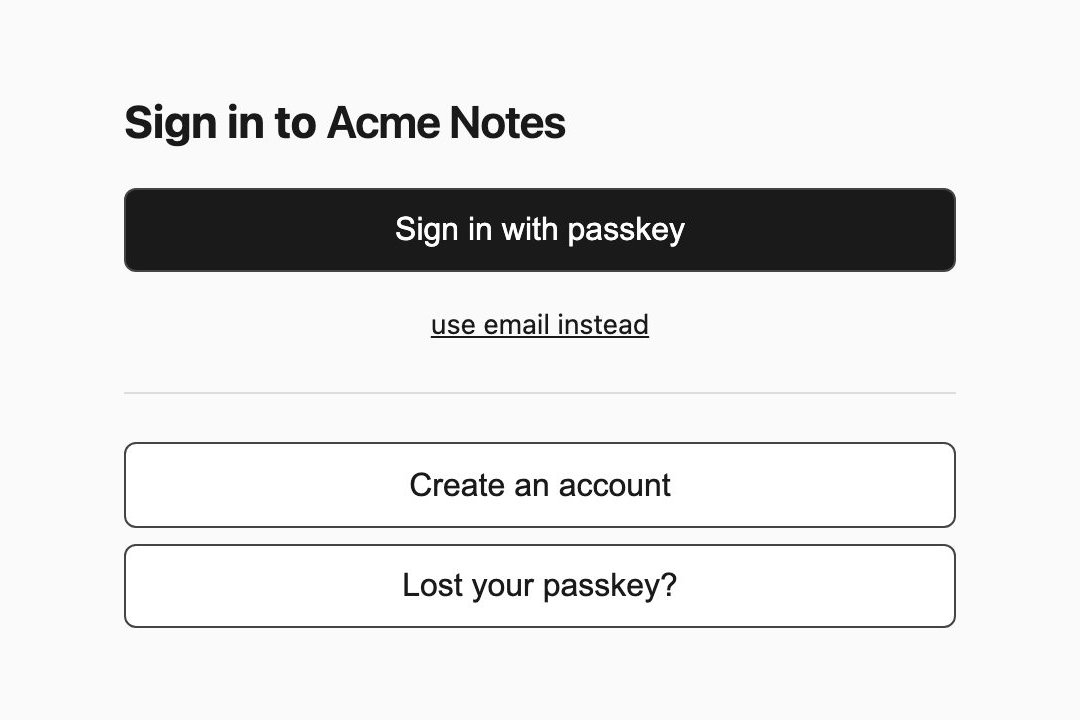
New users click Create an account, confirm their email and set up a passkey. Everyone else clicks Sign in with passkey and touches their fingerprint.
4. Use the token
Your library exchanges the code for tokens and checks the ID token for you. Read two claims:
sub: the user’s permanent ID. Store it.email: their verified email address.
That’s it. For what’s in each token and how to check one yourself, see Verify tokens.