Signing in
What your users see when they sign in with a passkey, and how to sign in with an email address first.
This page is written for the people who use your app. Link to it from your own help centre, or copy it.
Sign in with a passkey
When you choose Sign in in an app that uses Gatekeep, you’ll see this page, with the app’s name at the top:
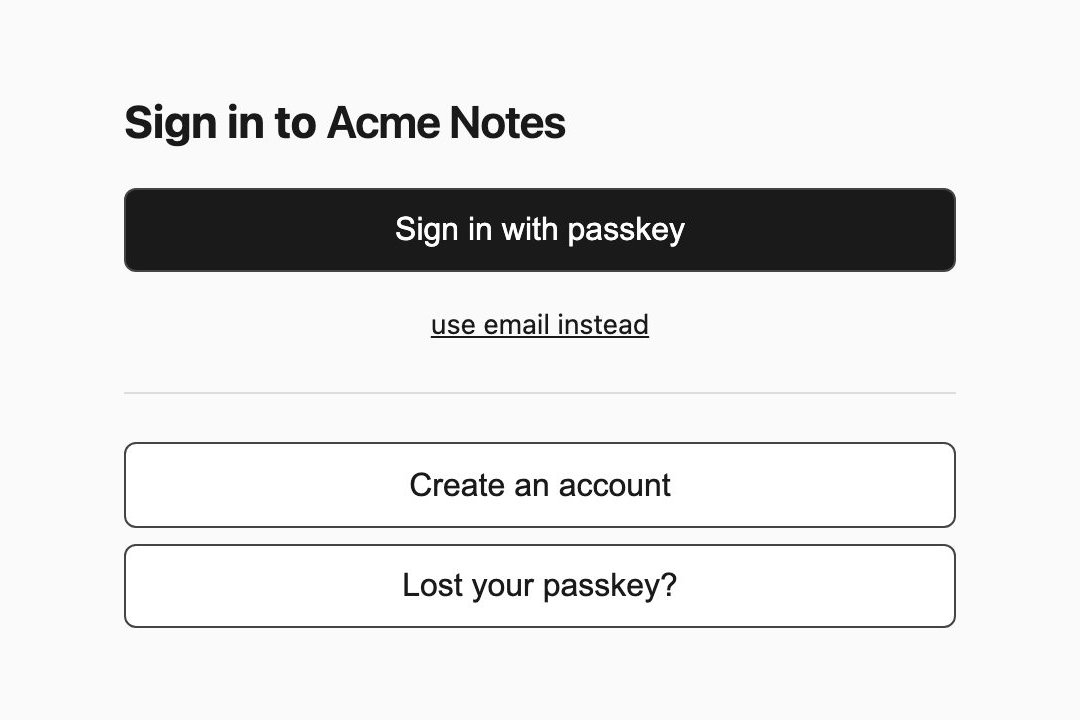
- Click Sign in with passkey.
- Your device asks you to confirm: Touch ID, Face ID, Windows Hello, your phone’s screen lock, or a tap on your security key.
- You’re back in the app, signed in.
If you have passkeys on more than one device, your browser lets you choose. To use a passkey that’s on your phone from a computer, choose the option to use another device and scan the QR code with your phone.
Sign in with your email first
If you have several accounts, or your browser offers the wrong passkey, click use email instead:
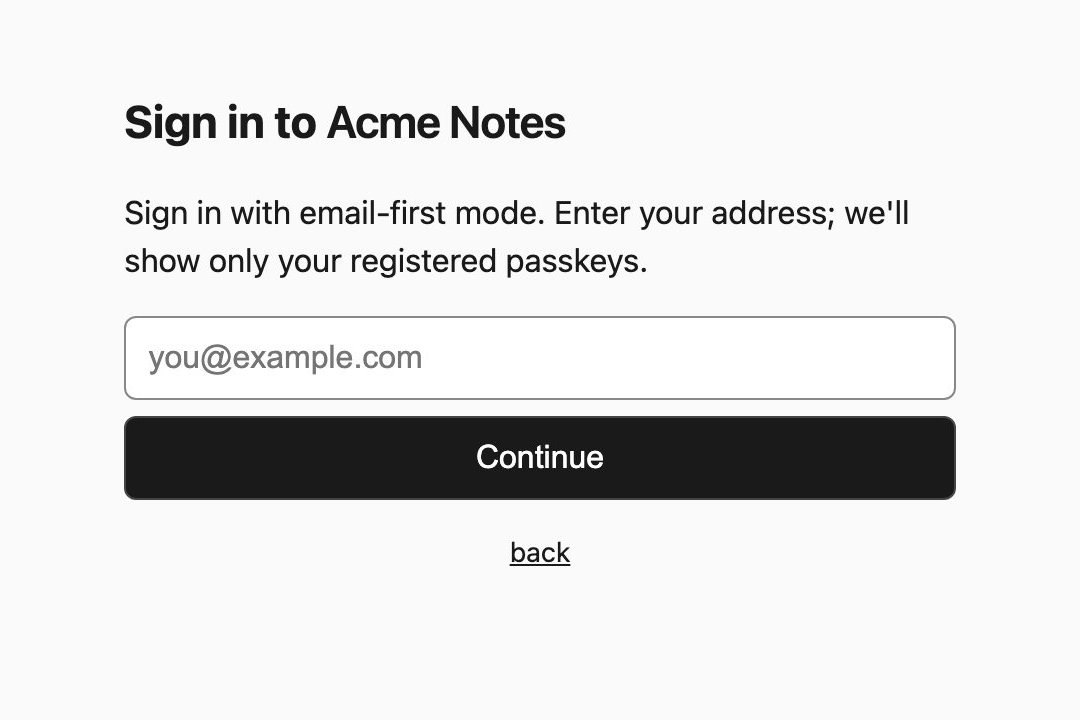
Enter your email address and click Continue. Your device then offers only the passkeys registered to that account.
Click back to return to the first screen.
Already signed in?
If you signed in to another app from the same company recently, you might go straight in without seeing this page at all. That’s single sign-on: one sign-in covers them all.
Don’t have an account yet?
Click Create an account. See Creating an account.